Background
P4 Finder – Perforce Asset Search & Export Helper
Software&Role


During my third year, I joined an industry-partnered course where our team collaborated with a commercial studio on a small game project. The studio’s pipeline was fully built on Perforce (P4V), so all character skeletons, rigs, models and textures had to be exchanged through their depot. In production, we frequently needed to pull specific skeleton rigs or export-ready files from the partner’s repository. However, asset names were often long and inconsistent, different versions were scattered across multiple depot paths, and some uploads were organised in a messy way. Riggers and animators had to spend a lot of time scrolling through P4V, trying filters, and manually checking files just to confirm which skeleton version was actually in use. To streamline this process, I started designing P4 Finder—a lightweight Python + PySide2 tool that connects to P4V and focuses on quickly locating skeleton-related assets. By searching via keywords and predefined depot paths, and then exporting the selected files to a local folder, the tool aims to make exchanging rigs, models and textures with the studio more reliable and less time-consuming.
Software:
Perforce(P4V)
PyCharm
QtDesigner
Role:
Technical Artist: Pipeline Tool
Research
Before designing the tool, I first looked at how skeleton assets actually move through the pipeline between our team and the partner studio.
Skeleton asset workflow
-
Collected several production skeleton files (.ma, .max) from the studio and drew small diagrams of their joint hierarchies.
-
Mapped where these files lived in Perforce: reference rigs, export-ready skeletons, and test scenes often sat in different depot paths under the same project.
-
Analysed the naming patterns used in the studio: character number + character name + “_Rig” + version suffix (_v001, _v002…), and noted which parts artists could remember easily (usually character name + rough description) and which parts they tended to forget (exact version number, long folder path).
User workflow study
To understand real usage, I watched our rigging and animation teammates searching for skeletons in P4V:
-
Logged the steps and time needed to fetch one skeleton: open P4V → find project root → browse multiple folders → try different filters → sync several candidates → open in DCC to confirm.
-
Noted common pain points:
-
-
They often only remembered a keyword (character or rig name), not the full file name.
-
They only needed one or two file types (e.g. export .ma) but search results mixed in many others.
-
Fear of syncing or copying from the wrong depot path, especially when multiple projects shared similar names.
-
I also reviewed Perforce / P4Python documentation to confirm which commands could help: p4.run_files, p4.run_sync, p4.run_where, and how to combine them for keyword search + path


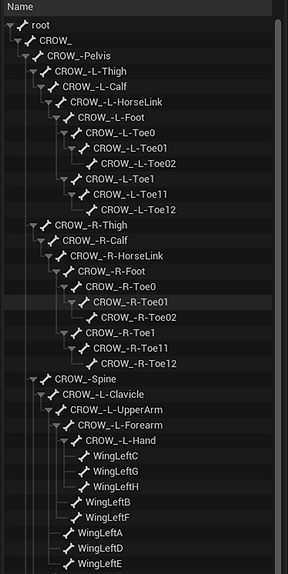
Date of completion: July 2025
UI Design - QtDesigner
Based on the research, I wanted the tool to feel as simple as “fill in a few fields → click once → get the skeleton files”. I used Qt Designer to quickly block out the layout, then refined all the widgets and objectNames so they could be referenced cleanly from Python.
-
The top row groups the connection settings: PortField, UserField, and WorkSpaceField let users enter Perforce server, user name and workspace once. These values are later read and stored via QSettings so they can be reused in the next session.
-
The middle block focuses on search conditions: KeyWordsField is used for character / rig names, while PathField and the browse button open a folder dialog to pick the working directory. The CheckBttn triggers the search logic in utils.finder().
-
The large list widget PathList shows all matching files, designed for quick scanning and multi-selection.
-
At the bottom, the ExBttn (“Execute”) runs the export process in utils.save_file(), copying the selected skeleton files to the target folder.
During UI setup I renamed all controls with clear, code-oriented objectNames (e.g. PortField, KeyWordsField, FindBttn, ExBttn), so I could connect signals and slots directly in Python without extra lookup code. This keeps the UI layer lightweight and makes it easy to extend the tool later with more Perforce operations if needed.
Implementation / Code Structure
I separated the tool into two main modules:
-
utils.py – Perforce operations
-
finder(port, user, client, file_name):
-
-
Creates a P4() instance, sets port, user, client, and connects.
-
Calls p4.run_files() or similar to list files under the target depot path.
-
Filters by keyword and file extensions (.json, .max, .ma), calls p4.run_sync() to ensure files are up to date, and uses p4.run_where() to resolve depot paths into local file paths.
-
Returns a Python list of local paths back to tool_ui.py, which then populates the PathList.
-
-
save_file(port, user, client, file_name, new_path):
-
-
Reconnects to Perforce with the same settings.
-
For each selected item, resolves its local path and copies it to the export directory using shutil.copy2, keeping timestamps and metadata.
-
2. tool_ui.py – application & UI logic
-
Loads the .ui file created in Qt Designer via QtUiTools.QUiLoader, and exposes it as a MainWindow class.
-
Connects all widgets (PortField, UserField, WorkSpaceField, KeyWordsField, PathField, CheckBttn, FindBttn, ExBttn, PathList) to their corresponding slots.
-
Stores user input in member variables (port_collect, user_collect, workspace_collect, etc.) and keeps them updated through textChanged / returnPressed signals.
-
Uses QFileDialog.getExistingDirectory() to select the local working path, and a helper append_item() function to update the result list widget and keep it scrolled to the bottom.
-
On startup and close, reads/writes a small JSON config + QSettings so that the last used Perforce settings are restored automatically.
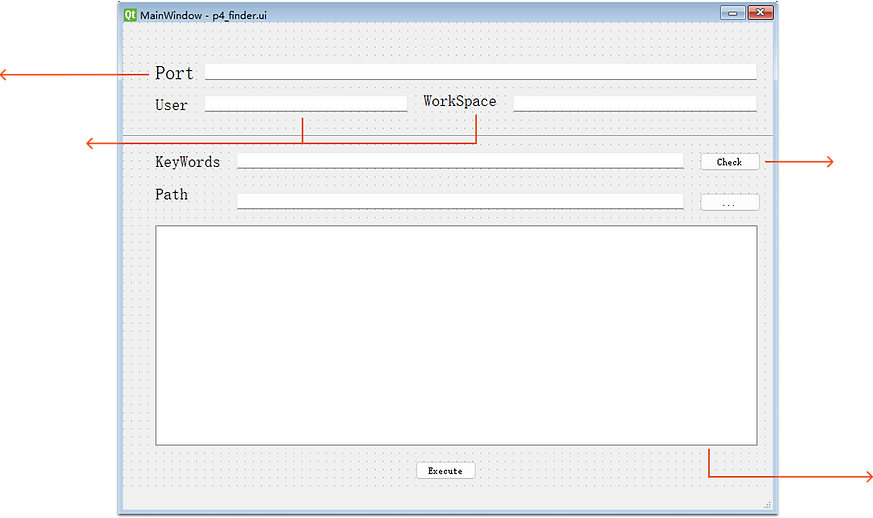
Perforce server
Typing Perforce Username and WorkSpace only one time
Typing Keywords for rig name
List Assets here


Wraps Perforce connection into a reusable function, so the tool can connect to different servers / workspaces just by changing parameters.
Combines keyword matching with extension filtering, then uses sync and where to ensure each match is up to date and resolved to a local path.
Reuses the same connection settings to resolve each selected file and copies it to the export folder using shutil.copy2, keeping metadata intact.


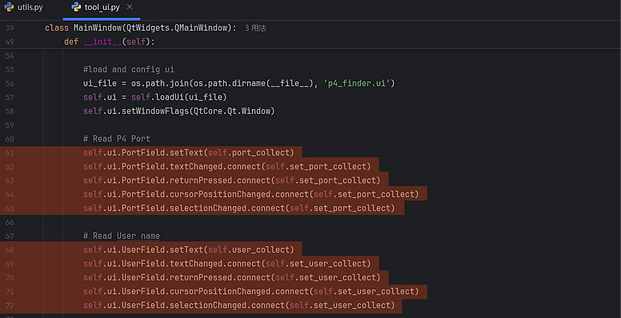


This block manages the lifetime of the main window.
This block wires the remaining input fields to the same pattern: WorkSpaceField, KeyWordsField and PathField are pre-filled from the stored config, and each field updates its corresponding variable (workspace_collect, keywords_collect, path_collect) whenever the user edits it.
Binds UI widgets to internal variables so user input is always synced with the tool’s configuration state.


Keeps the UI editable in Qt Designer while loading it dynamically at runtime, so design and code stay decoupled.

These callbacks bridge the UI and utils.py: one click on Check runs the Perforce search and populates the list; one click on Execute exports the selected files.
